How Tampa Businesses Automate Client Onboarding to Save 10+ Hours/Week
By Alex De Gracia, Founder, Everyday Workflows
In the thriving business landscape of Tampa Bay—from the historic streets of Ybor City to the gleaming high-rises of Water Street—competition is fierce. As local businesses scale, the administrative burden often scales with them. One of the most critical, yet time-consuming, aspects of running a service-based business is client onboarding.
If you are manually sending contracts, creating folders in Google Drive, or typing out "Welcome" emails by hand for every new client, you are likely losing 5 to 10 hours a week. That’s over 400 hours a year—time that could be spent on strategy, business development, or simply enjoying the Florida sunshine.
At Everyday Workflows, our team has analyzed hundreds of operational structures. The consensus is clear: manual onboarding is the silent killer of growth. It introduces human error, slows down the "time-to-value" for your client, and creates unnecessary friction. In this guide, we will walk you through a comprehensive, step-by-step blueprint to automating your client onboarding process, ensuring you maintain a high-touch feel without the manual labor.
The High Cost of Manual Onboarding
Before we dive into the technical implementation, it is vital to understand why this matters. Many passionate founders in Tampa believe that "doing it by hand" adds a personal touch. However, the reality is often different.
When you rely on manual processes:
- Speed Decreases: A client signs a proposal on Friday afternoon, but you don't set up their project until Monday morning. That serves as a "cooling off" period where buyer's remorse can set in.
- Consistency Suffers: One client gets the welcome packet immediately; another waits three days because you were stuck in traffic across the Howard Frankland Bridge.
- Scalability Stalls: You can handle 5 clients manually. Can you handle 50? A manual process breaks under pressure.
Our team specializes in building systems that allow businesses to handle 50 clients with the same ease as they handle 5.
Phase 1: The Audit—Mapping Your Workflow
You cannot automate what you do not understand. Before subscribing to Zapier or Make, grab a whiteboard or use a tool like Miro.
Write down every single step you currently take when a customer says "Yes."
- Do you send a proposal?
- Do you send an invoice?
- Do you create a Slack channel?
- Do you create a folder in Dropbox/Google Drive?
- Do you add them to your email marketing list?
The Goal: Identify the trigger (e.g., "Client signs contract") and the subsequent actions.
For a typical Tampa-based digital agency or construction firm, the map often looks like this:
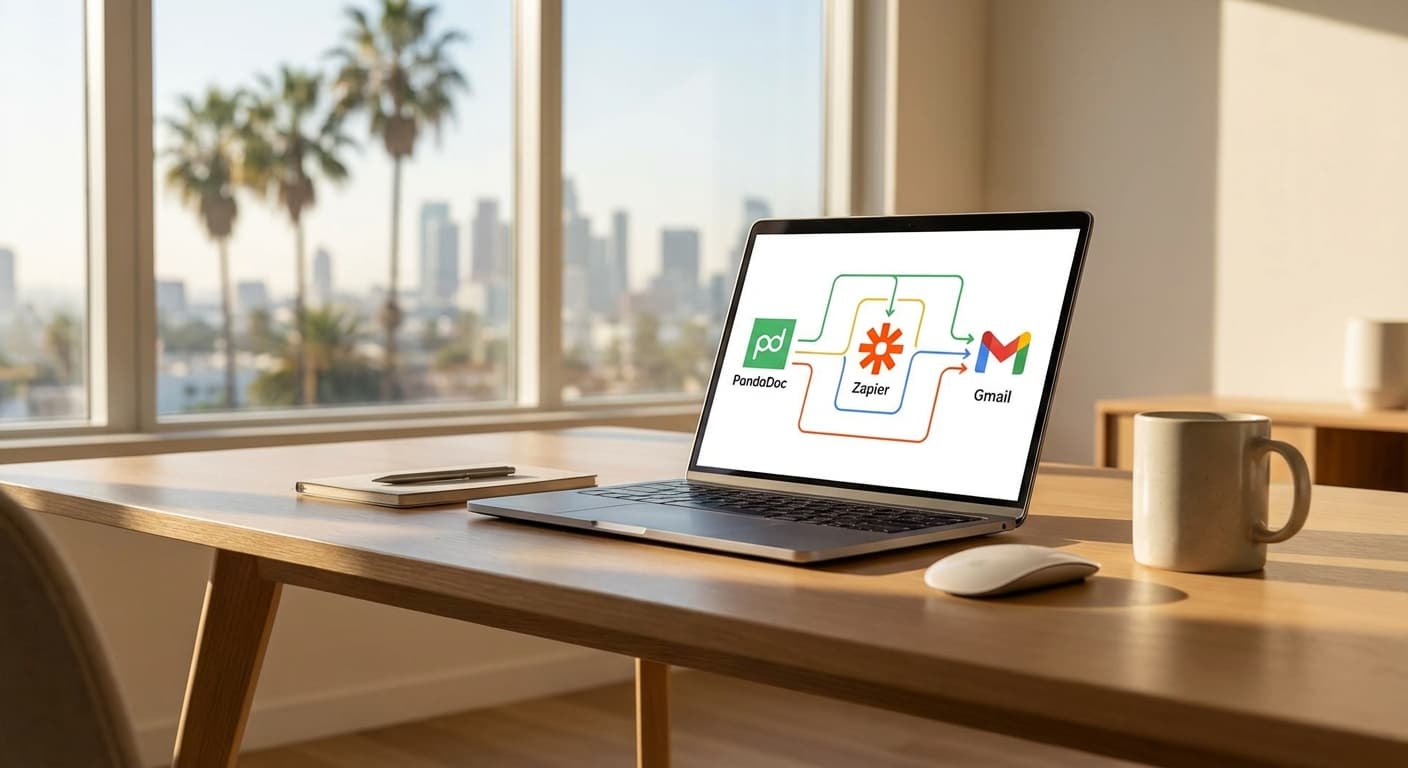
- Trigger: Proposal Signed in PandaDoc.
- Action 1: Create Customer in CRM (SmartSuite/ClickUp).
- Action 2: Generate Invoice in QuickBooks Online.
- Action 3: Create Google Drive Folder from Template.
- Action 4: Send "Welcome" Email with "Next Steps".
Phase 2: The Tech Stack
To achieve a seamless "set it and forget it" workflow, you need the right tools. While there are endless options, our team typically recommends the following stack for its reliability and integration capabilities:
- The Trigger: PandaDoc or DocuSign. These tools capture the legally binding "Yes" and provide the necessary data (Name, Email, Company Name) to kick off the process.
- The Connector: Make (formerly Integromat) or Zapier. This is the digital glue. For complex onboarding with multiple branches, we prefer Make. For linear processes, Zapier is excellent.
- The Database: SmartSuite, Airtable, or ClickUp. You need a central source of truth where client data lives.
- The Communication: Gmail/Outlook and Slack.
Phase 3: Step-by-Step Implementation
Here is how we build this engine. We will assume you are using Zapier as your connector for this walkthrough, as it is widely accessible.
Step 1: reliable Data Capture
The process starts with the contract. Ensure your contract template in PandaDoc has "Roles" assigned (e.g., Client Name, Client Email). This is crucial because Zapier needs to "read" these specific fields to pass the data along.
Pro Tip: Add a field in your contract for "Project Start Date" and "Phone Number." capturing this data upfront saves back-and-forth emails later.
Step 2: Setting the Trigger
In Zapier, create a new Zap.
- Trigger App: PandaDoc (or your chosen signing tool).
- Event: "Document Completed."
- Test: Perform a test to pull in sample data from a recently signed contract.
Step 3: Centralizing the Customer
Once the contract is signed, you need a record in your project management tool.
- Action App: ClickUp (or SmartSuite).
- Event: "Create Task" or "Create Record."
- Mapping:
- Map Client Name from PandaDoc to the Task Name in ClickUp.
- Map Client Email to a custom field.
- Set the due date relative to the signing date (e.g., +2 days).
This ensures that the moment ink hits the paper, your operations team has a ticket on their board. No one needs to message the sales team to ask, "Did they sign?"
Step 4: Digital Housekeeping
Creating folders manually is tedious. Let’s automate it.
- Action App: Google Drive.
- Event: "Create Folder."
- Mapping: Use the Client Name + Client ID for the folder name (e.g., "Acme Corp - Onboarding").
Advanced Strategy: Use the "Copy File" action in Zapier immediately after creating the folder. You can copy a "Master Onboarding Checklist" document into the new client’s folder automatically.
🚀 Ready to streamline your operations?
Stop letting manual tasks slow you down. At Everyday Workflows, we build custom automation solutions tailored to your specific business needs—right here in Tampa. Book Your Free Discovery Call to see how much time we can save you this month.
Step 5: The "Welcome" Comms
This is where many businesses fail—they automate the admin but forget the human touch.
- Action App: Gmail (or Outlook).
- Event: "Send Email."
- The Template:
- Subject: Welcome to [Your Company], [Client Name]!
- Body: "Hi [First Name], we are thrilled to have you on board. We have already set up your project folder here: [Link to Google Drive Step]. Please book your kick-off call using the link below."
By mapping the specific Google Drive link from Step 4 into the email in Step 5, you look incredibly organized. The client thinks you spent 20 minutes setting this up; in reality, the bot did it in 4 seconds.
Phase 4: Common Pitfalls to Avoid
As we help Service businesses optimize their flows, we see a few common mistakes:
1. Over-Automation
Do not try to automate strategy. Automate the admin. We advise against automating sensitive communications where a phone call would be better. If a client sign-up value is high (e.g., $50k+), perhaps the "Welcome" email should actually be a task for the CEO to call them. You can automate the reminder to call, but keep the human interaction real.
2. Dirty Data
If your input data (contract fields) is messy, your output will be messy. If a client types their name in all lowercase ("john doe"), your automated email will look unprofessional ("Hi john doe").
- The Fix: Use Formatter by Zapier between the Trigger and the Email step to capitalize names properly.
3. Ignoring the Process Check
Automations can break if passwords change or APIs update. We recommend a quarterly "fire drill" where you pretend to be a client and sign a test contract. Verify that every step triggers correctly.
The "Tampa Advantage": Local Context
For businesses operating in Hillsborough and Pinellas counties, speed is a differentiator. Whether you are a boutique marketing agency in Seminole Heights or a legal firm in Downtown Tampa, your clients expect Amazon-level responsiveness.
Implementing these workflows isn't just about saving your admin team 10 hours a week—though that is a massive benefit. It is about signaling to your market that you are a modern, professional operation. When a client receives a perfectly formatted welcome packet 30 seconds after signing a contract at 8:00 PM on a Tuesday, you establish trust instantly.
Conclusion: Start Small, scale Fast
You do not need to automate everything overnight. Start with the "Low Hanging Fruit": the contract-to-folder-to-email sequence. Once that is running smoothly, you can look at automating invoice creation in QuickBooks or assigning team members in Slack.
At Everyday Workflows, we believe that technology should serve the business, not the other way around. By reclaiming these 10+ hours a week, you gain the freedom to focus on the high-value work that actually grows your revenue.
The tools are ready. The blueprint is here. The only thing missing is your execution.
Ready to build your automated empire? Check out our detailed case studies to see how other local businesses are winning with automation.
About the Author

Alex De Gracia
Founder & Lead Automation Consultant
Founder of Everyday Workflows with expertise in workflow automation, AI implementation, and business process optimization. Active in Tampa business community, South Tampa Chamber of Commerce, and Young Catholic Professionals Tampa.
Learn more about our approach →Last updated: February 13, 2026
Ready to automate your workflows?
Book a free strategy session to discuss how automation can transform your business.
